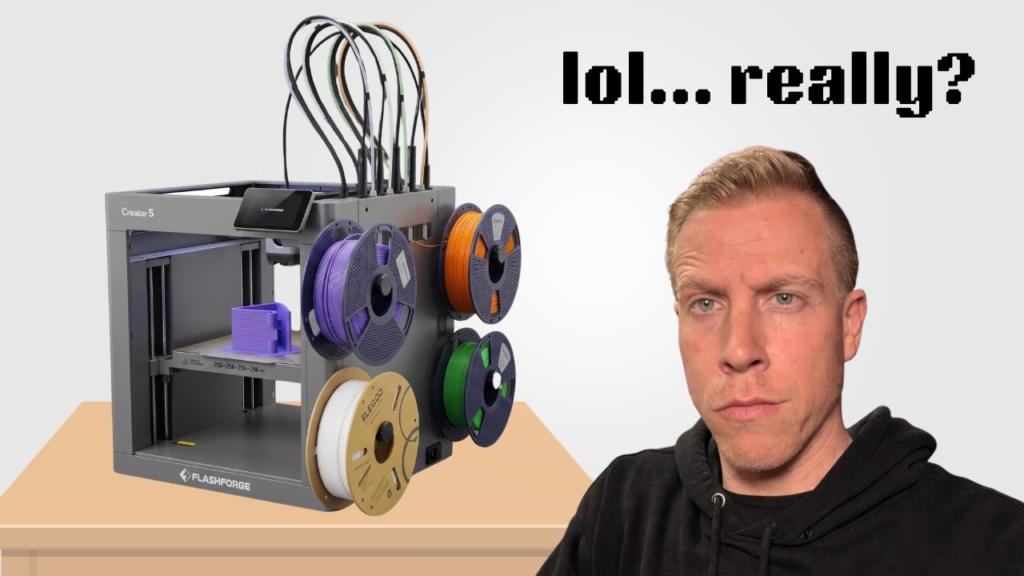
Flashforge Creator 5 Bent Nozzle? Here’s What I’d Do
A bent nozzle on the Flashforge Creator 5 is definitely something I’d take care of before doing a bunch more printing. With four different toolheads getting picked up and parked throughout a print, everything needs to line up correctly. Even one nozzle being slightly bent can start causing some pretty strange problems.
If you’ve already confirmed the nozzle is bent, I wouldn’t try getting too fancy with repairing it. Replacement Creator 5 nozzles aren’t terribly expensive, and I’d rather replace the nozzle than straighten it and potentially have it cause another collision later.
You can find replacement Flashforge Creator 5 nozzles on Amazon here:
How to Tell if Your Creator 5 Nozzle Is Bent
The nice thing about having four toolheads is that you have three other nozzles sitting right there to compare it with.
Move the toolheads somewhere you can clearly see them and look at the nozzles from both the front and side. They should all look straight coming out of the hotend.
Sometimes the bend is really obvious. Other times it’s just barely crooked.
You may also notice problems during tool changes, the nozzle sitting differently against the build plate, one color not lining up correctly with the others, or the nozzle dragging across your print.
Why Did the Creator 5 Nozzle Bend?
I’d want to figure this part out before installing the replacement.
The nozzle may have crashed into the print. A corner of the model could have warped upward, the print could have partially detached from the bed, or some other piece of plastic may have ended up in the nozzle’s path.
I’d also watch the tool-changing system closely. The Creator 5 is constantly picking up and parking different toolheads during multicolor prints. If something isn’t lining up correctly during that process, replacing the nozzle without fixing the original problem could leave you with another bent nozzle.
Basically, don’t just replace the part and forget about it. Spend a few minutes trying to figure out what bent it in the first place.
Should You Straighten a Bent Creator 5 Nozzle?
I wouldn’t.
Maybe you could straighten a nozzle that’s only slightly bent and get away with it, but you’re dealing with a pretty important part of the printer.
Once that metal has been bent, I’d rather spend a few bucks replacing it and know it’s straight.
Here’s the Creator 5 replacement nozzle I found on Amazon:
Recalibrate the Creator 5 After Replacing the Nozzle
This is one step I definitely wouldn’t skip.
Once the new nozzle is installed, run the Creator 5’s calibration again. With four independent toolheads, the printer needs to know the exact position of each nozzle so they all line up when switching between colors.
After calibration, I’d do a small test print before starting anything huge.
Watch the printer pick up and park the toolhead that had the bent nozzle. Make sure it’s docking correctly, watch the first layer, and make sure the new nozzle isn’t dragging across the bed or print.
Keep an Extra Creator 5 Nozzle Around
The Creator 5 is one of those printers where I’d probably keep a spare nozzle in my drawer.
You’ve got four separate toolheads, which is awesome for multicolor printing, but it also means you have four nozzles that can eventually clog, wear out, or get damaged.
Having one extra 0.4mm replacement around means a bent nozzle doesn’t have to shut down your printer while you wait for another one to arrive.
Creator 5 replacement nozzles on Amazon:
For me, the big thing here is figuring out why the nozzle bent. Replace the damaged nozzle, recalibrate the printer, run a small test, and watch those first few tool changes closely. If everything looks normal again, you’re probably good to get back to printing.