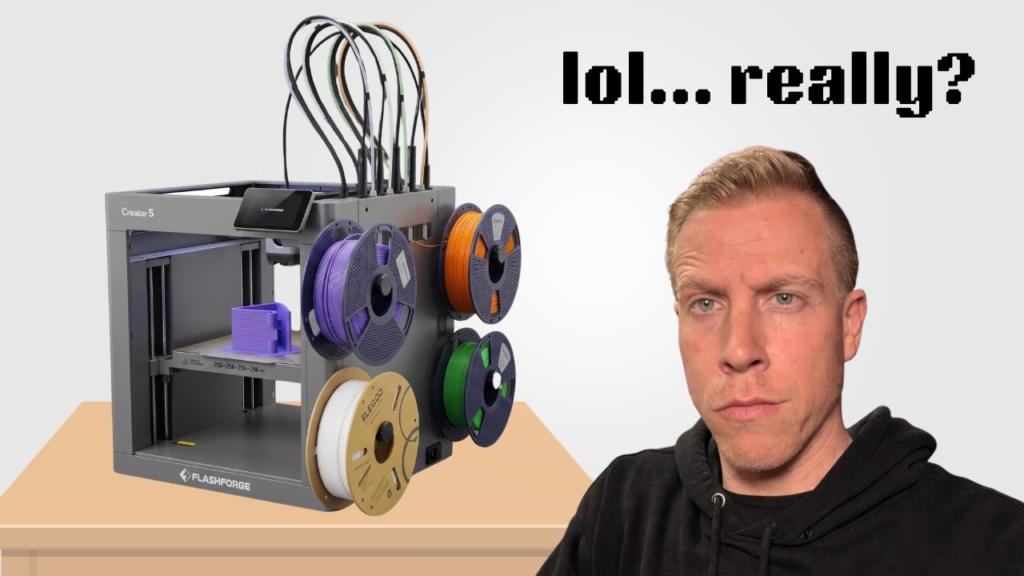
The Flashforge Creator 5 is one of those 3D printers that immediately caught my attention because it handles multicolor printing completely differently than most of the printers I’ve used. Instead of loading four colors into a system that constantly feeds them through the same nozzle, the Creator 5 actually has four independent toolheads.
That might sound like a small difference, but it’s really the whole reason this printer is interesting.
Each toolhead can have its own filament loaded and the printer physically swaps between them during the print. You can use four different colors, but you can also start playing around with different materials. And because you’re not constantly unloading one filament and loading another through the same nozzle, there’s a lot less purging involved.
For me, that’s the biggest reason to consider the Creator 5.
How the Flashforge Creator 5 Works
The Creator 5 uses what Flashforge calls its FlashSwap system. There are four separate toolheads parked across the back of the printer.
When the printer needs a different color or material, it parks the toolhead it’s currently using and grabs another one.
So imagine you’re printing something with black, white, red and blue filament. Instead of pushing the black filament all the way back out of the hotend, loading red, purging until the black is gone, and then repeating that process every time the color changes, the Creator 5 simply grabs the toolhead that already has red loaded.
That’s a much better way of doing multicolor printing in my opinion.
Four Independent Toolheads
The four toolheads are obviously the star of the show here.
Each one has its own nozzle, extruder and hotend. When that toolhead isn’t being used, it sits parked in its docking station until the printer needs it again.
All four toolheads can access the full 256 x 256 x 256mm build area too, so you’re not giving up a bunch of your build plate just because you’re printing with multiple toolheads.
The printer automatically calibrates the offsets between those toolheads, which is extremely important. When you’re switching between four different nozzles, they all need to know exactly where they are or your colors and layers aren’t going to line up correctly.
Way Less Multicolor Filament Waste
This is probably my favorite thing about the Creator 5.
I’ve used plenty of multicolor systems where you end up with a ridiculous pile of purge waste sitting next to the printer when the print is finished. You’re basically paying for filament just to have the printer poop it into the garbage.
The Creator 5 doesn’t need to completely flush one color out of a shared nozzle every time it changes colors.
You can still have some priming involved, so I wouldn’t literally call every multicolor print completely waste-free, but compared with constantly purging a shared nozzle, the four-toolhead approach can dramatically reduce how much filament you’re throwing away.
If you do a LOT of multicolor printing, that starts becoming a pretty big deal.
Multicolor AND Multi-Material Printing
Another thing I really like about having separate toolheads is that you aren’t limited to simply changing colors.
You can potentially assign different materials to different toolheads.
For example, you could print the main model with PLA and dedicate another toolhead to a support material such as PVA or BVOH. You can also experiment with combining flexible and rigid materials depending on the project.
That’s where I think tool-changing printers start getting really interesting.
Printing a four-color toy is cool. Being able to build one part using materials with completely different properties opens up a whole different side of 3D printing.
Flashforge Creator 5 Build Volume
The Creator 5 has a 256 x 256 x 256mm build volume.
I think that’s a really nice size for a home 3D printer. It’s large enough for most of the stuff I’m normally printing without making the entire printer ridiculously huge.
The build plate is a removable textured PEI flexible steel plate, so once your print cools down you can remove the plate, flex it and pop the print off.
That’s pretty much what I want on a modern 3D printer.
How Fast Is the Creator 5?
Flashforge rates the Creator 5 for travel speeds up to 600mm/s, print speeds up to 300mm/s and acceleration up to 30,000mm/s².
Obviously, I wouldn’t choose a printer just because the manufacturer puts a giant speed number on the box. Your actual print speed depends on the model, filament, quality settings and what you’re trying to accomplish.
Where the Creator 5 gets really interesting is the speed of multicolor printing.
A traditional single-nozzle multicolor system has to unload filament, load another filament and purge the previous color. The Creator 5 can physically switch toolheads instead.
If you’re doing a model with hundreds of color changes, all of those little time savings can really add up.
Automatic Bed Leveling and Calibration
This is another reason I think the Creator 5 is actually pretty approachable even though the four-toolhead system sounds complicated.
The printer has automatic bed leveling along with automatic multi-toolhead offset calibration and compensation.
That’s important because manually getting four separate nozzles perfectly aligned would be a nightmare for most people.
I’d still recommend learning the basics of how your printer works, but you shouldn’t have to spend your first day with the Creator 5 manually trying to get four toolheads aligned with each other.
Creator 5 Nozzles
The standard nozzle size on the Creator 5 is 0.4mm, which is what I’d recommend for most people anyway.
There are also 0.25mm, 0.6mm and 0.8mm nozzle options available.
A smaller nozzle can be useful when you’re chasing really tiny details, while something like a 0.6mm or 0.8mm nozzle can make sense when you want stronger parts, thicker lines or faster printing.
The nozzle assemblies are removable too, which is nice because nozzles are eventually going to wear out, clog or occasionally get damaged.
I’ve actually put together a separate page specifically about dealing with a bent Creator 5 nozzle because that’s one of those problems that’s much easier to troubleshoot once you know what you’re looking for.
Built-In Camera and Remote Monitoring
The Creator 5 also has a built-in 1280 x 720 camera running at up to 30 FPS.
I really like having a camera on my 3D printers. I’m constantly starting prints and then going off to work on something else, so being able to check whether the print is still going normally without standing next to the printer is really useful.
The Creator 5 supports Wi-Fi along with USB connectivity and remote monitoring.
It’s not necessarily the reason I’d buy this printer, but once you’ve owned printers with remote monitoring, it’s something you definitely start expecting.
What Filament Can the Creator 5 Print?
For the standard open-frame Creator 5, I’d mainly be looking at materials like PLA, PETG and TPU.
It can also handle things like PLA-CF and PETG-CF, and having multiple toolheads makes support materials such as PVA and BVOH much more interesting.
The hotends can reach 320°C and the bed can reach 120°C, so the hardware itself is capable of getting pretty hot.
The thing to remember is that the regular Creator 5 is still an open-frame printer.
That’s important.
Just because your nozzle can reach the temperature required for a certain material doesn’t automatically mean an open printer is the best machine for printing it. Materials like ABS and ASA generally benefit from a controlled enclosure.
If engineering materials are going to be a huge part of what you’re doing, that’s where I’d start looking at the Creator 5 Pro instead.
Flashforge Creator 5 vs Creator 5 Pro
The biggest difference between the Creator 5 and Creator 5 Pro is the enclosure.
The regular Creator 5 is open.
The Creator 5 Pro is enclosed and adds an actively heated chamber along with air filtration.
Both machines still give you the same basic four-toolhead system and the same 256 x 256 x 256mm build volume.
So I think the decision is actually pretty simple.
If most of your printing is going to be PLA, PETG, TPU and colorful everyday projects, I’d seriously consider saving the money and getting the regular Creator 5.
If you’re specifically buying this machine because you want to work with ABS, ASA, nylon and more advanced engineering materials, that’s when the Pro starts making a lot more sense.
What Slicer Does the Creator 5 Use?
The Creator 5 supports Orca-Flashforge and OrcaSlicer.
I personally like seeing Orca support because a lot of people in the 3D printing community are already familiar with it.
There are obviously more settings to think about once you’re dealing with four different toolheads, especially when you start mixing materials, but you don’t need to become a slicer expert before making your first print.
Start simple.
Load up a couple colors of PLA, learn how the tool-changing system works, and then start messing around with the more advanced stuff.
Is the Flashforge Creator 5 Good for Beginners?
I actually think it can be.
Normally I’d be hesitant to recommend a four-toolhead machine to someone buying their first 3D printer because that sounds like you’re adding four times as many things that can go wrong.
But a lot of the complicated calibration work is automated on the Creator 5.
You can absolutely buy something simpler and cheaper if you just want to print basic single-color PLA models. But if multicolor printing is one of the main reasons you’re excited about getting into 3D printing, I’d rather buy something that gives you room to grow.
You can start simple and learn the more advanced features as you go.
What I Like About the Flashforge Creator 5
The tool-changing system is easily my favorite part of this printer.
Multicolor 3D printing has gotten incredibly good, but filament waste is still one of the things that drives me crazy about a lot of these systems. I don’t love watching a printer burn through filament just because I wanted a few different colors on one model.
Having four separate toolheads is a much cleaner solution.
I also like that you’re getting a normal 256mm cubed build area, automatic calibration, a camera, Wi-Fi, removable nozzles and support for Orca-based slicing.
It’s a lot of printer.
What I Don’t Like About the Creator 5
The biggest thing I’d think about before buying the regular Creator 5 is the open-frame design.
That’s perfectly fine for the materials most people are going to print every day, but it limits the machine compared with the Creator 5 Pro if you’re planning on getting heavily into engineering materials.
The four-toolhead design also means there are simply more mechanical parts involved. You have four nozzles, four extruders and a docking system instead of one normal printhead moving around the printer.
That’s part of what makes the Creator 5 awesome, but it also means there are more things you’ll eventually need to understand and maintain.
And while the four-toolhead design massively reduces the need for traditional color purging, don’t buy it expecting that you’ll never see another bit of wasted filament. Priming and loading can still produce some waste.
Who Should Buy the Flashforge Creator 5?
I’d look really hard at the Creator 5 if you already know multicolor printing is going to be a big part of what you do.
It’s especially interesting for people making toys, signs, display models, decorative pieces, prototypes and anything else where you’re constantly switching between colors.
I’d also consider it if you’re interested in multi-material printing. Having a dedicated toolhead for support material or a completely different type of filament gives you possibilities that you simply don’t get as easily with a normal single-nozzle printer.
If all you’re ever going to do is print single-color PLA parts, though, you probably don’t need four toolheads.
There are cheaper and simpler printers that’ll do that job perfectly fine.
Is the Flashforge Creator 5 Worth It?
For me, the Creator 5 is interesting because it actually solves a problem instead of just giving us another 3D printer with slightly different specs.
Multicolor printing is awesome.
Throwing away piles of filament isn’t.
The Creator 5’s four independent toolheads attack that problem in a really simple way: instead of constantly changing the filament going through one nozzle, change the entire toolhead.
It’s one of those ideas that makes a lot of sense once you see it working.
The Creator 5 isn’t going to be the perfect printer for everybody, and I wouldn’t buy one solely because it has four toolheads. But if you love multicolor printing, hate purge waste, or want to start experimenting with multiple materials in the same print, this is definitely a printer I’d have on my shortlist.
More Threads Related to this Printer:
Bent Nozzle? – A bent nozzle on the Flashforge Creator 5 is definitely something I’d take care of before doing a bunch more printing. With four different toolheads getting picked up and parked throughout a print, everything needs to line up correctly.
Binding Up? – I wouldn’t keep running prints and hope it works itself out. Something is creating resistance somewhere, and the first thing I’d do is figure out exactly which movement is causing it.
Camera Not Working? – Then suddenly I’m annoyed that I can’t quickly check a print without walking over to the machine. If the camera on your Flashforge Creator 5 isn’t working, I’d start with the easy stuff before assuming the camera itself is bad.
Clogged Nozzle? – You might hear the extruder clicking, see barely any filament coming out, get really thin or inconsistent extrusion, or have one of the four toolheads suddenly stop printing while the others seem completely fine.
Top 5 Enclosure Models – The regular Flashforge Creator 5 is an awesome printer, but one of the biggest things separating it from the Creator 5 Pro is the enclosure.